Posting - Editing
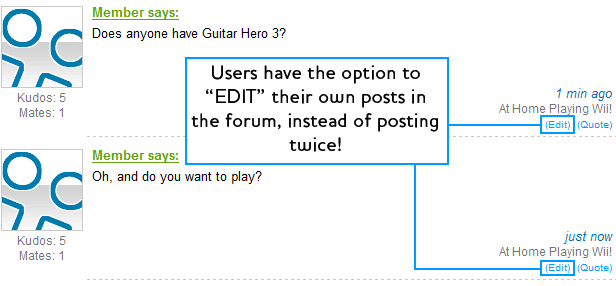
When using the forum, instead of posting an addition to your post directly after, you can use the edit button...
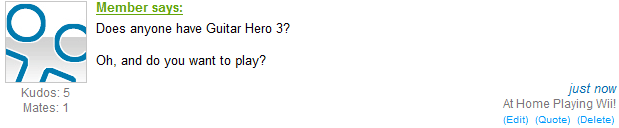
And just like magic you can add onto a single post which makes the forum much cleaner and organised!
Posting - Quotes
Posting - Smileys
Posting - Bold / Italics
You can use either of the following to change font appearance as shown above.
[b] Text in here will appear Bold [/b]
[i] Text in here will appear Italics [/i]
Posting - Adding Links
This isn't all too complicated, the only thing you remember if you want a hyperlink is to add the http:// at the start, otherwise it will not link!
Yes! - https://www.myds.com.au/
No! - www.myds.com.au/
Posting - Images
Many people often want to add pictures to their posts. This is done by placing the direct URL between 2 tags, example:
[img] Direct URL [/img]
[img] /_assets/http/www.mymedia.net.au/img/myds.gif [/img]
If you have done it right, it will appear as follows:

Remember: A "Direct Link" Is one that includes the picture, and the picture only. In the URL bar direct links will end in one of the following: .png .gif .jpg .bmp
Posting - Youtube
1. Find the URL for your youtube video you want to put in. eg: http://www.youtube.com/watch?v=n-vdJpuVedk
2. Copy the 11 letters/numbers after watch?v=
3. You should now have copied this part: http://www.youtube.com/watch?v=n-vdJpuVedk
4. Then place those 11 digits inbetween a youtube tag.
[youtube]n-vdJpuVedk[/youtube]
NOTE: Do not leave spaces between the 11 digits and the tags!
Then if all goes well, it should embed the video into your post! Like this one!
Adding Content - Video Section
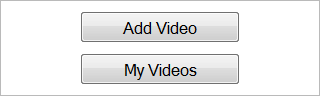
In the video section there is a box in the top right corner with 2 options, to see your previous videos select the bottom one, but to add a video select the top one.
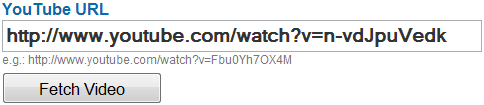
Then it will ask you to insert a video URL. Simple, go to the page with the video on it, and copy the URL address bar up the top! Then just paste it in! It should look something like this:
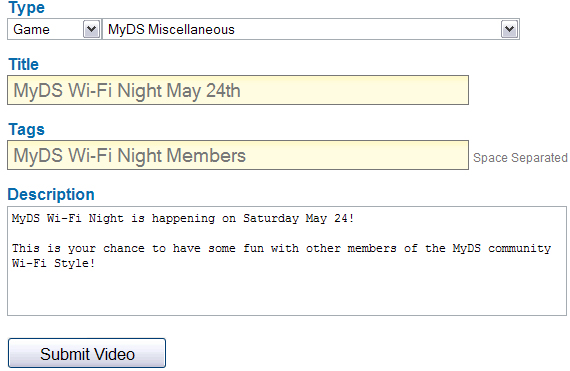
You will now see the video up the top, and some text inputs under the dotted line. But what to put here? Follow these handy hints!
Type:
The first thing you need to ask, is "What is my video related to?" If:
Game: Select the Game option and choose the game from the list.
Accessory: Select the Accessory option and choose the accessory from the list.
Neither: Select the Game option and choose "MyDS Miscellaneous"
Title
In short this is what the video is called. Do something informative but short.
Tags
Separate these by a single space. These are keywords that will help other users locate your video!
Description
This is auto-generated from the Youtube Description, you can change it if you want, but leaving it be is fine.
Now Upload!
Adding Content - Gallery
In the Gallery there is a box in the top right corner with 2 options, to see your previous images select the bottom one, but to add a images select the top one.
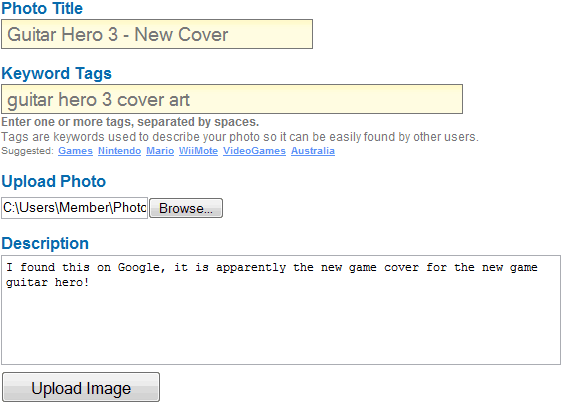
Then you will be prompted with a quick form to fill out. Follow these guidelines to fine the best output:
Photo Title
This is the title of the photo, and the phrase other users will see that makes them want to click on the link.
Keyword Tags
Put in single words separated by a space that will help other users find images like yours by related words.
Upload Photo
This is where you browse for the file on your own computer. Click on the file and press ok!
Description
A brief write up about what your image is, how you got it, and other small facts for the reader to see.
Adding Content - Reviews
In the Review Section there is a box in the top right corner with 2 options, to see your previous Reviews select the bottom one, but to add a Review select the top one.
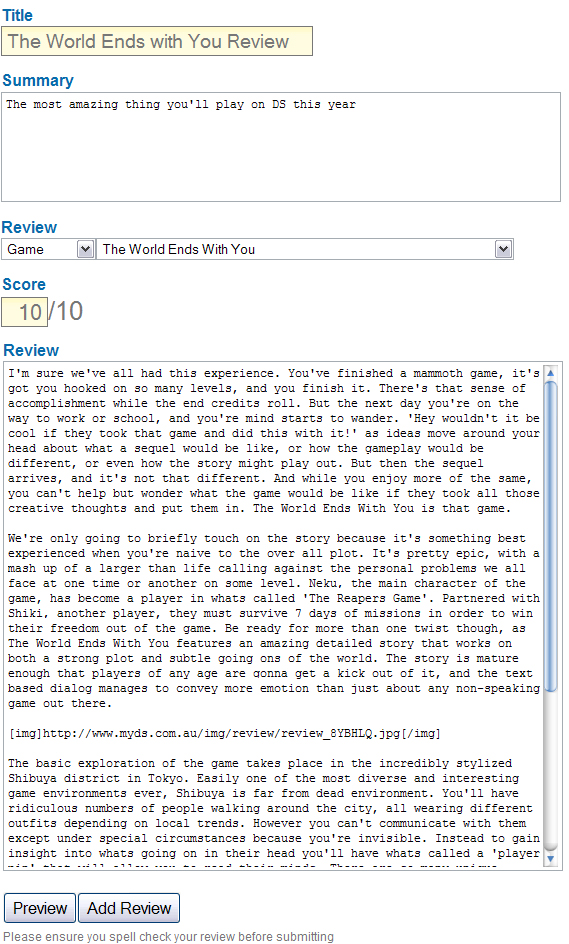
You will then be asked to fill out various parts of your review. These include:
Title:
This is what your review is called, whether it be something plain or a pun.
Summary:
This will appear under the title on the main page, this is a brief outline of your review, or a summary of your thoughts.
Review
Decide which category your Review goes into:
Game: place it in the game section and choose the accurate game.
Accessory: place it in the accessory section and choose the accurate game.
Neither: place it in the game section and choose "MyDS Miscellaneous"
Score
Your score out of 10!
Review
This is the body of your review, in short where the entire review rests. Make sure it is at least a few hundred words!
Spellcheck it, preview it, then post it!
Adding Content - News Section
In the top right of the page you will find a box with options in it. You can check out either 'popular' or 'recent' news while you are here. If you want to see previously posted news that you posted, select the bottom option, if you want to post some new news, select the top one.
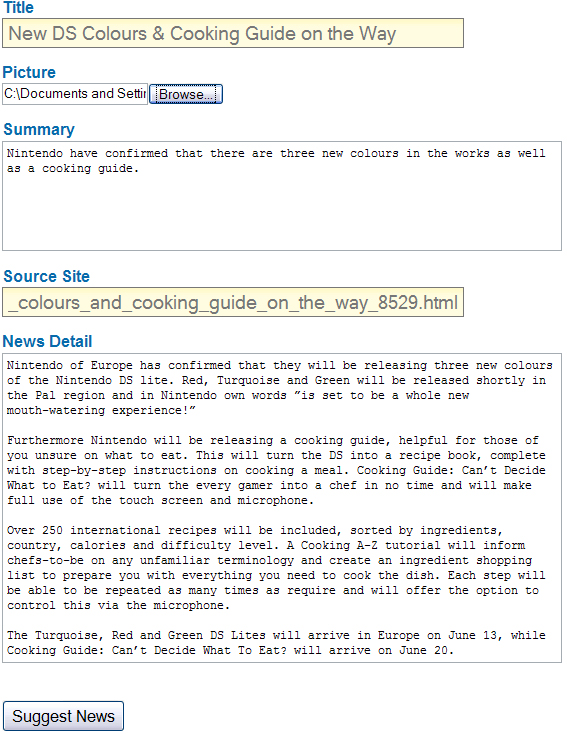
Think hard when entering news, there are multiple parts to fill out, they all contain different information:
Title:
This is the phrase that users on the homepage will see that tells them what your article is about.
Picture:
This will be the main image for the article, so upload an image from your computer of a related image.
Summary:
This is a brief summary of the article, just some quick points and what outside readers will see on the main page.
Source Site:
This is the site where you found the information, you're not allowed to just copy and paste stories but we still require you provide a source for your information.
News Detail:
The full article, the main detail of it. Dump all of the information here, then when you are done, preview it and / or post it!
If you would like any more assistance on what makes a good news article then check out our News Submission Guide.
Adding Content - Friendcodes
Once you are in the friendcode section, select the game that you own.

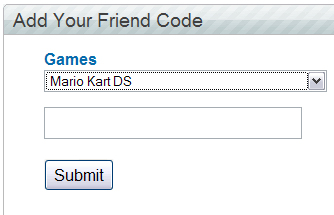
Once you have selected a game you will be able to see everyone's friendcode for that game. To add your friendcode select the game from the drop down arrow and input the (generally 12 digit) friendcode. You have now been added to this list and your friendcode can easily be viewed and accessed be everyone!
Adding Content - Discussions

On the right hand side of the forum page there is a button that allows you to add discussions. Click it.
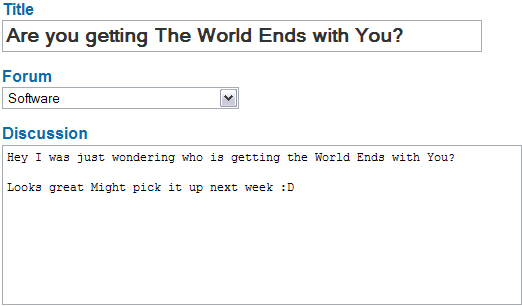
Now you can add the information in.
Title:
The title of your discussion, this is what outside users will see when your discussion is in the forum.
Forum:
Choose the discussion group accurately that your discussion is going to be placed in. In this case it is Software, because the game is software.
Discussion:
What you write in this box is what is going to be in the first post of the entire discussion. Make it informative and helpful.
Personal - Private Messages (PM)
A large feature that is used throughout the site is the ability to message people on-site. When you receive a Private Message it will appear so on the top left of the screen in a green box as so. Click on either of the links and off you go!
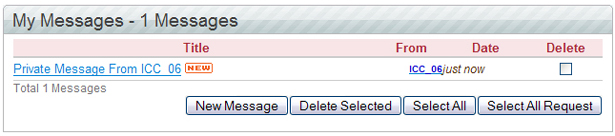
Once in the inbox you can select what message you want to read. The messages with the bubble 'New' next to it mean that the message has not yet been read!
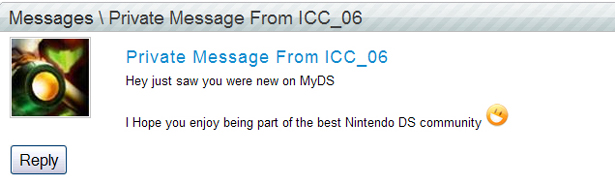
Now you can read your message, and if you want to reply to the user just press the reply button!
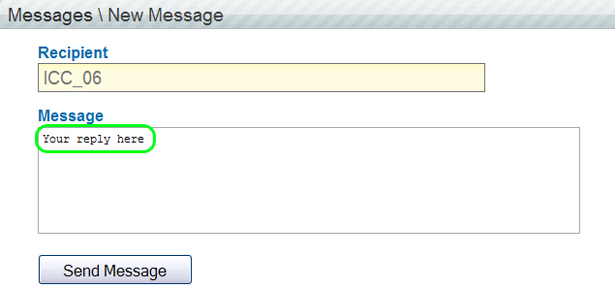
When you write your reply remember to put your reply "ABOVE" the dotted lines, as this helps users see what you replied to! Once you are happy, you can preview and / or send!
Alternatively you can just press the mail button on the top of the screen

Then you can see your received or sent items, but since you want to send a message, press the 'New Message' button!
Personal - Friend Requests
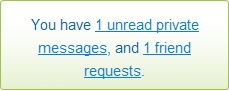
This is similar to receiving a PM in the fact that you are notified by the small green box on the top left of the screen, when you have a friend request, click the link!

Find the friend request you want to accept/decline and click on it!
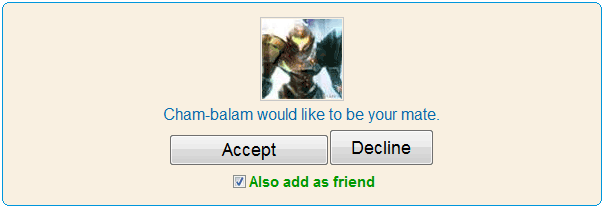
Now it's just a simple question of would you like to accept them as a friend or decline it?
How to "Send" someone a Friend Request
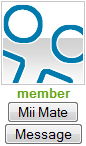
In someones profile, under their avatar there is 2 buttons. The top one is so you can send someone a Friend Request. If you press it, it will automatically send one to the users page you are on.
To send someone a Private Message, just press the Message button directly underneath.
Profile

Every user has their own profile, you can get to any members profile by clicking on their username throughout the site. To get to your own go to the top of the page and look for the 'Profile' or 'Me' button! Press it!
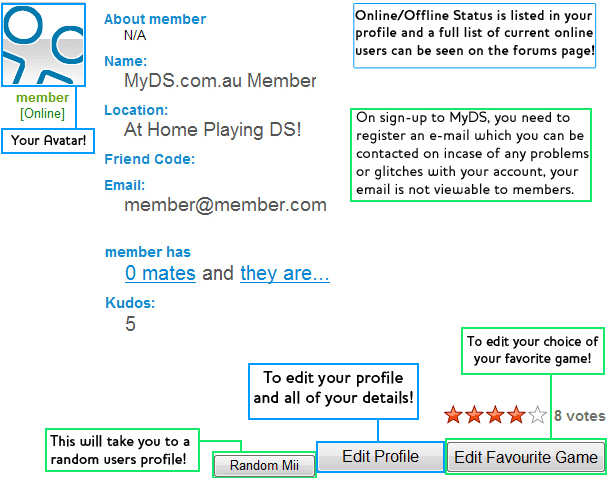
This is your profile, on it there you will find various types of information, but how much you put on there is up to you.
Rather then show you the entire profile edit page, we will just show you the things that you need help with. The simple ones like 'Full Name' are fairly straight forward.
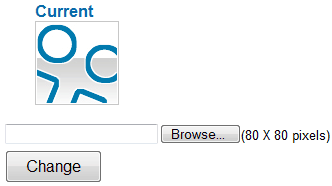
Your avatar will appear next to every post you make, to show members who you are. This is an 80x80 pixel image.
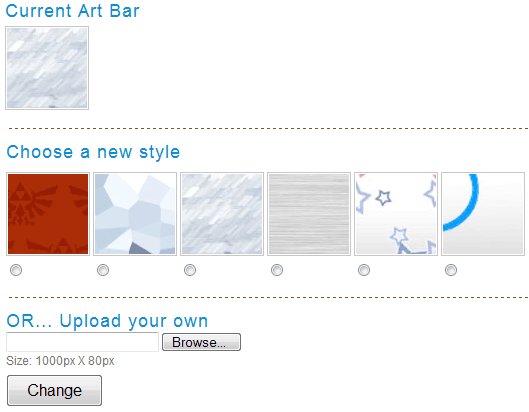
At the top of everyones profile page there a default DS Background! If you would like to change this MyDS comes out of the box with a few other artbar choices for you to use. But if you want you can insert your own 1000x80 pixel art bar!
Personal - "Everyone Is" (Public Status)
Want to tell everyone else what you are doing? This is where the 'everyone is' section comes into play. Any member that has seen the homepage would have seen our "everyone is" section where members posted what they are doing, and it might cross your mind thinking about how to add to that.
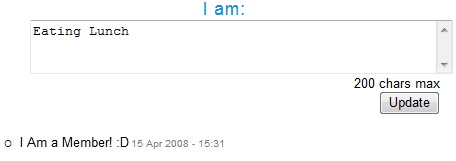
Just under the top box of your Profile there is a box where you can enter what you are doing. Once you have entered that in there just press "Update" and it will be added to the Public Status Box!
Kudos
Kudos are how we manage how much you contribute to this site. But some people want to get kudos to look like they are cool, when really, they haven't done anything but make a whole lot of useless posts to gain kudos. Kudos is like a post count, and this does not work because Admins will delete your 'spam' and you will lose more kudos then. "One step forward and two steps back".
Kudos is a post count, it's not worth money, and cannot be traded for games
Kudos is currently handed out like this:
Action made to earn / lose kudos |
Kudos Earned |
| Each Vote for a game/accessory |
1 Kudos |
| Each Post/Comment |
2 Kudos |
| Each Video Added |
5 Kudos |
| Each Picture Added to Gallery |
5 Kudos |
| Each Review Written |
20 Kudos |
| Each Piece of News Added |
25 Kudos |
| Each Review Recommended by an Admin |
50 Kudos |
| Each post Deleted by an Admin |
-10 Kudos |
| Each Review Deleted by an Admin |
-35 Kudos |
| Each Piece of News Deleted by an Admin
| -50 Kudos
|
Using the Search Bar

Located in the top right hand corner of the site, the search bar can help you find anything that you need on MyDS as quickly as possible. Topics searched will return results for forum discussion, all games, accessories, videos, images, guides and news. Many people may have had the same problems or questions before you so it can be worth your while to check out the replies other people may have received before starting a new discussion in the forums.
When using the search bar it can be useful to be general in your search times.
e.g. Rather than searching "How do I defeat the forth boss in the legend of Zelda?" try "Zelda help".
So you want to be an Admin?
A large amount of members at one point or another will want to become an Admin, but don't know exactly what to do. Being an Administrator / Moderator does not just require skill, but good attitude and teamwork. Current Admins will often work together to pick out members they see potential for. MyMedia Games Network has over 20,000 sign ups, and maybe only around 50 Administrators, so if you are not picked don't stress too much over it. Traits of an Admin include:
- Show a strong sense of right and wrong on the site
- Do not Flame members, or spam on the site
- Be helpful to the members and help fix problems
- Be constantly on the site
- Inform current Admins of problems on the site
- Do not ask to be admin, if you are worth it, we will tell you
There is a high amount of background work as an Admin, and most likely work that you will not be credited or noted for, it's a very selfless job. If you are doing the right things, we will notice it and inform MrDS and you will be put on a 1 – 2 week trial where we will watch what you do and how you act, upon making a decision of whether you should continue with your duties.This is also the case for Admin-Likes who may be considered to begin helping out with just one section of the site.
What are these Yellow Digg Tags?

Most of you would have seen the yellow digg tags (as pictured) around the site on news and reviews. Digg is a kind of social networking and promotional tool where you can submit things on the web that you think are worth sharing. Digg helps to share the breaking news and awesome reviews and articles with others which in turn expands MyMedia and offers its content to a larger audience which will help to Make MyDS and all of MyMedia even better!

You can help out by digging everything that you see with one of these Digg tags. Firstly you can sign-up to Digg here, once you've done that all you have to do is simply press the 'digg it button' on all of the awesome articles with Digg tags on MyDS.
Game Profile
Every Game or Accessory that is housed on MyDS.com.au has it's own profile which you can access via the Games / Accessory section. They will look something like this:
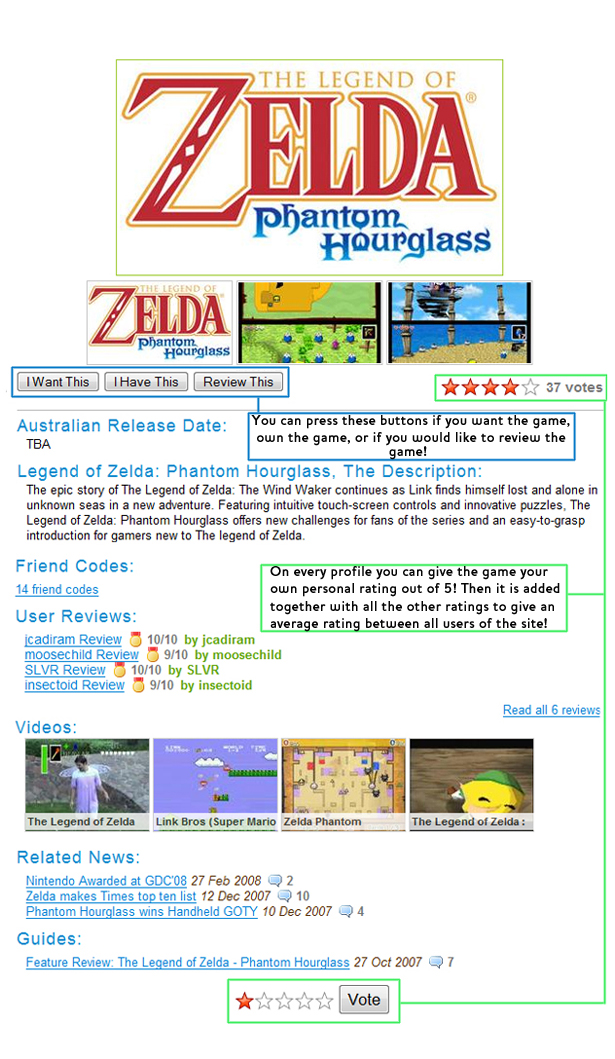
It will give you some pictures of the game, some brieg information on what it is about, the release date, and other links across the website for things like reviews, videos, news, articles, walkthroughs. It's your ultimate guide to a game!
Can't find a game? Remember to have a look for it using the search bar, if you still can't find it let us know here.
Polls

On the right hand coloum of every page (except the homepage) you will see the box that says 'Polls'. In here will contain the poll title, which you can click on to take you to the poll!
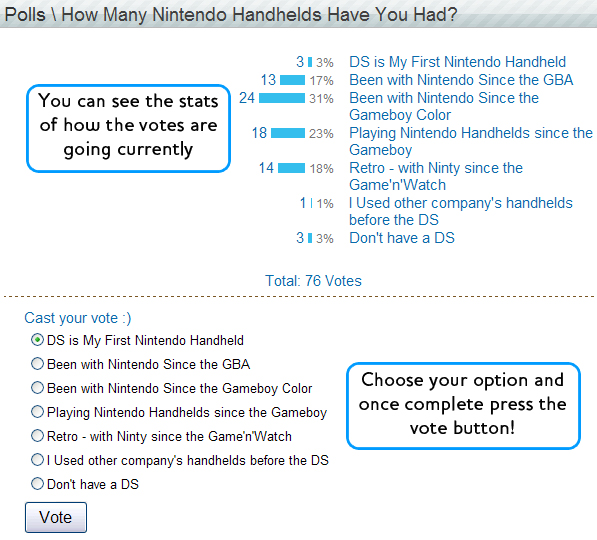
Once in the poll you can submit your vote, then you can check out how the poll is currently going, how many people have voted for each item and the percentage of all votes that item has received! If you want to stick around a little longer you can go make a comment underneath.
Pwnage
To say thank you, we are offering our gratitude to those who have subscribed by giving them some extra features,
like able to change your username colours, get special medals, able to upload pictures directly to discussions etc, it's our way to say thank you.
MyDS Pwnage benefits
- You can help to prevent forum abuse
- You get to have your own special Pwnage badge below all your comments / forum posts
- Your votes gets a big 2X!
- You can upload pictures in your discussions
- You get to choose the colour of your username
- Pwnage only limited edition medals every month
- Help Report Abuse
- And many more interesting goodies coming soon...
And the most important of it all, you can help us to grow and provide a better site for the rest of members.
Active Admins
MyDS is run by a group of people. These people are the Admins (Administrators). They keep things upto date and run the forum as well as enforcing rules across the site. Here are a list of the active admins on the website and the option to send them a message if you need help or just want to say hi! They will be glad to chat!
Admins
You can also contact out site Creator, MrDS. He is a very busy man so please contact an administrator rather then contacting him.
Medals
Medals are a type of reward and help to spice up your profile! How you earn each medal is different and can be for answering a question or for completeing a task. How to earn each medal and the quantity to be given out will be explained when the medal is launched, you can also find a list of all currently open medals here. If you want a full list of medals that have been given out in the past you can go to the Medals Page.
What is MyMedia?

MyDS is part of MyMedia.net.au. This is a site in the MyMedia Games Network. This network contains many video game and electronic websites with news, active forums and up to date information. Your MyDS account grants you permission to use the same account on every site on the network! So get going!